Introduction
If you’re a photographer, you know how quickly your photo collection can grow. From client shoots to personal projects, it’s easy to end up with thousands — or even tens of thousands — of images scattered across drives, folders, and cloud accounts.
Without a clear system, finding the right photo becomes a frustrating task, backups get messy, and client delivery can take longer than necessary. In this guide, we’ll show you how to organize a large photo library online efficiently, whether you have 5,000 images or 100,000+.
By the end, you’ll know how to structure, tag, and manage your photos in a way that saves time and keeps your workflow smooth.
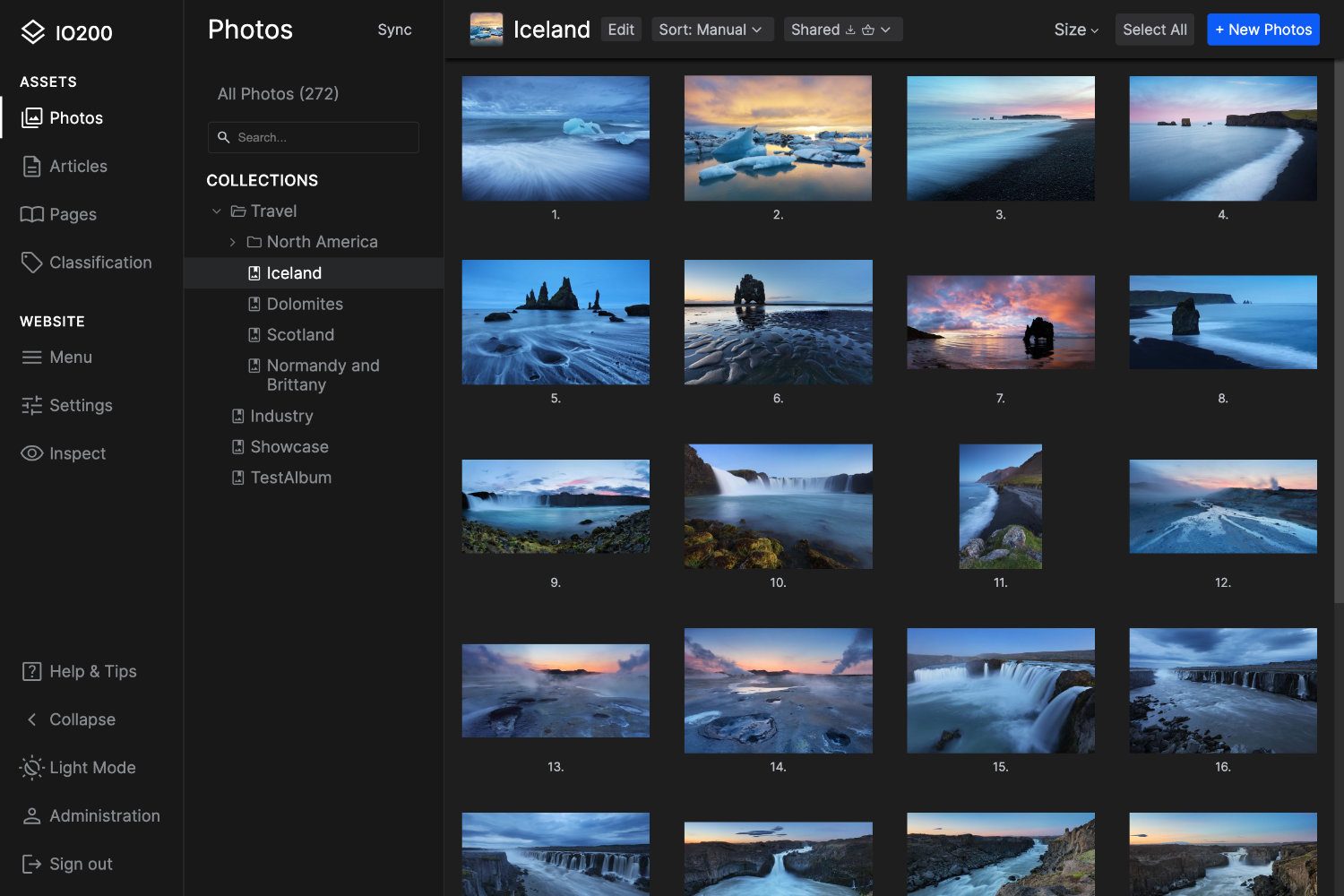
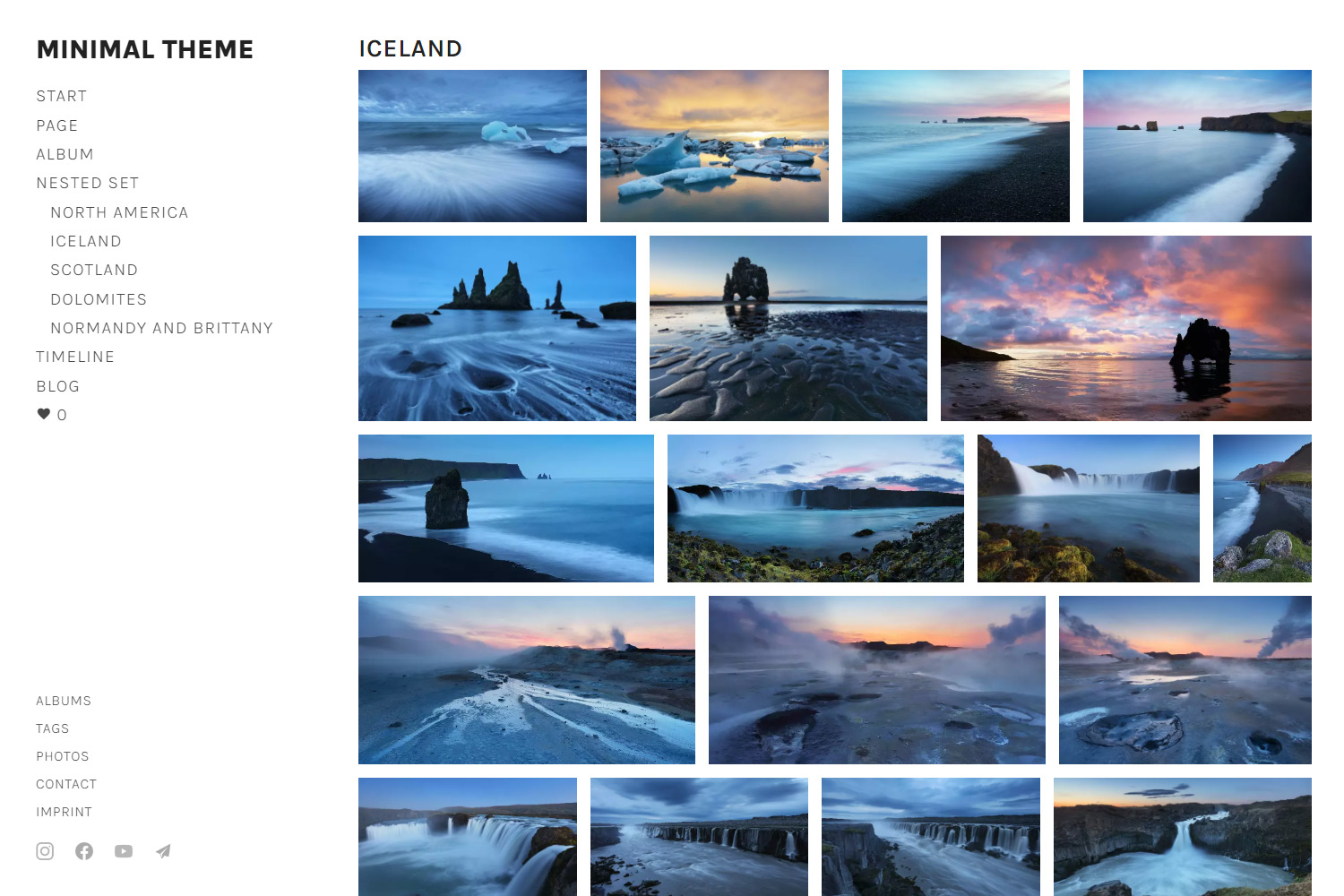

Step 1 – Plan Your Photo Library Structure
Before moving or uploading files, think about how you want your library organized. The key is consistency.
Common Strategies
-
Date-Based
- Folder structure by year/month/day
- Easy for chronological browsing
-
Project-Based / Client-Based
- One folder per client or project
- Ideal for photographers delivering galleries
-
Category / Subject-Based
- Weddings, portraits, landscapes, etc.
- Works well if you shoot multiple genres
Tip: Many photographers combine approaches (e.g. client → shoot date → category). Planning early saves headaches later.
Step 2 – Choose the Right Online Tools
The tool you use can make or break your workflow. Consider:
- Self-hosted CMS (like IO200)
- Full control over your library
- No subscription lock-in
- Fast access to thousands of photos
- Hosted Solutions (Pixieset, SmugMug, Squarespace)
- Easy setup
- Limited storage or branding restrictions
- Subscription costs can grow quickly
When managing tens of thousands of photos, self-hosted solutions often win for speed, control, and scalability.
Modern self-hosted CMS platforms are also surprisingly easy to set up — often requiring nothing more than uploading a single installer file and following a simple step-by-step setup.
→ Learn More About Managing Large Photo Archives
→ Learn More About IO200 Photo CMS
Step 3 – Import & Organize Photos
Once your structure is defined, import your files and apply organization techniques:
- Batch Rename Files
- Include date, client name, and project for easy searching
-
Example:
2026-03-20_ClientName_Wedding001.jpg
- Add Metadata & Tags
- IPTC/XMP tags for keywords, location, and copyright
- Makes searching within thousands of files possible
- Use Smart Folders or Collections
- Group photos dynamically by tags or categories
- Saves time for repetitive tasks
Pro Tip: Don’t skip metadata — it’s crucial when scaling to 100,000+ images.
Step 4 – Backup & Security
No organization system is complete without backups:
- Multiple Backups
- Local drives + cloud
- Consider incremental backups to save space
- Protect Client Photos
- Disable downloads for private galleries
- Watermark images when needed
Tools like IO200 let you host private client galleries safely, keeping files secure while remaining accessible.
→ See How IO200 Delivers Photos to Clients
Step 5 – Ongoing Maintenance
A large library is only useful if it stays organized. Some tips:
- Regularly sort new imports immediately
- Archive old projects to reduce clutter
- Audit tags and metadata annually to maintain consistency
Small, regular efforts prevent the “messy photo library” problem from growing out of control.
Conclusion
Organizing a large photo library online doesn’t have to be overwhelming. By planning your structure, choosing the right tools, and maintaining your library, you can access any photo in seconds, keep clients happy, and focus on photography rather than chaos. If you want a fast, self-hosted solution that handles tens of thousands of photos seamlessly, check out IO200 Large Photo Archive Software.
Start Your Own Photo Website Today